Karaoke for kids and families: fun, safe and easy
Karaoke at home is great fun for kids and builds confidence. Here's how I prepare a kids' playlist, stay in control of what plays, keep the volume comfortable and keep siblings from squabbling.
We have two kids at home, one in second grade and one in preschool. Every weekend there used to be a "concert" in the living room, with a spoon for a microphone. One evening I put real karaoke on the TV for them, and family music night has been a fixture ever since.
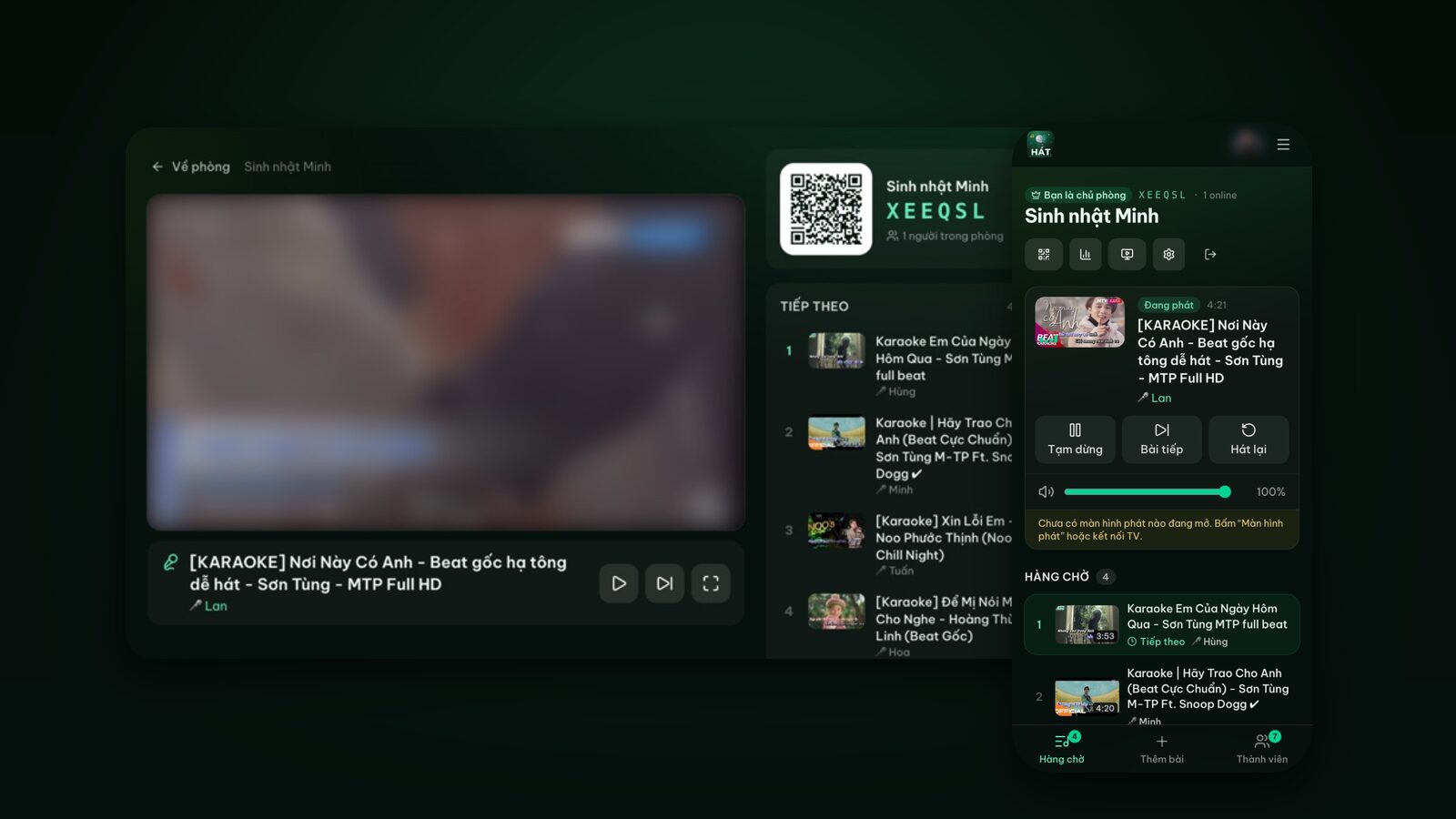
This post collects what I've learned from lots of kids' karaoke nights: why it's worth doing, how to prepare a kids' playlist, how to make sure nothing unexpected pops up on the TV, how to keep the volume comfortable, and how to stop siblings fighting over the mic. Everything happens in the browser with Hát nhau nghe, with nothing to install.
Why karaoke works so well for kids
I'm not an educator, but with my own two I've noticed a few things:
- Confidence. Standing up in front of the family, holding a mic and hearing applause at the end is a big deal for a kid. My youngest started out singing quietly behind her sister; a few weeks later she was asking for solos.
- Reading practice. For early readers, lyrics that change color with the music are a natural reading exercise. They have to recognize the words and keep up with the beat.
- Language. Songs in your home language help with clear pronunciation, and a few songs in a second language make new sounds feel like play rather than a lesson.
- Time together. Instead of everyone on a separate screen, the whole family is in one room, laughing and cheering each other on.
Most important of all, it should be fun. Don't turn it into a singing lesson; let them get the words wrong and miss the beat.
Prepare a kids' playlist ahead of time
The lesson I learned the hard way: don't search for songs during the session. Kids won't wait while you scroll through ten karaoke versions to find a good one. Build a playlist in advance.
- 1Go to hatnhaunghe.com and sign in with a parent's Google account.
- 2Open Playlists and create one called something like "Kids' songs".
- 3Search for each song, check the karaoke version, and add the good ones.
- 4On the night, open a room and add the whole playlist to the queue in one tap.
When searching, add "karaoke" to the song title, for example "Baby Shark karaoke" or "Let It Go karaoke". There's a Disney quick pick in the search box too. More tips on picking a clean version are in how to find karaoke songs on YouTube.
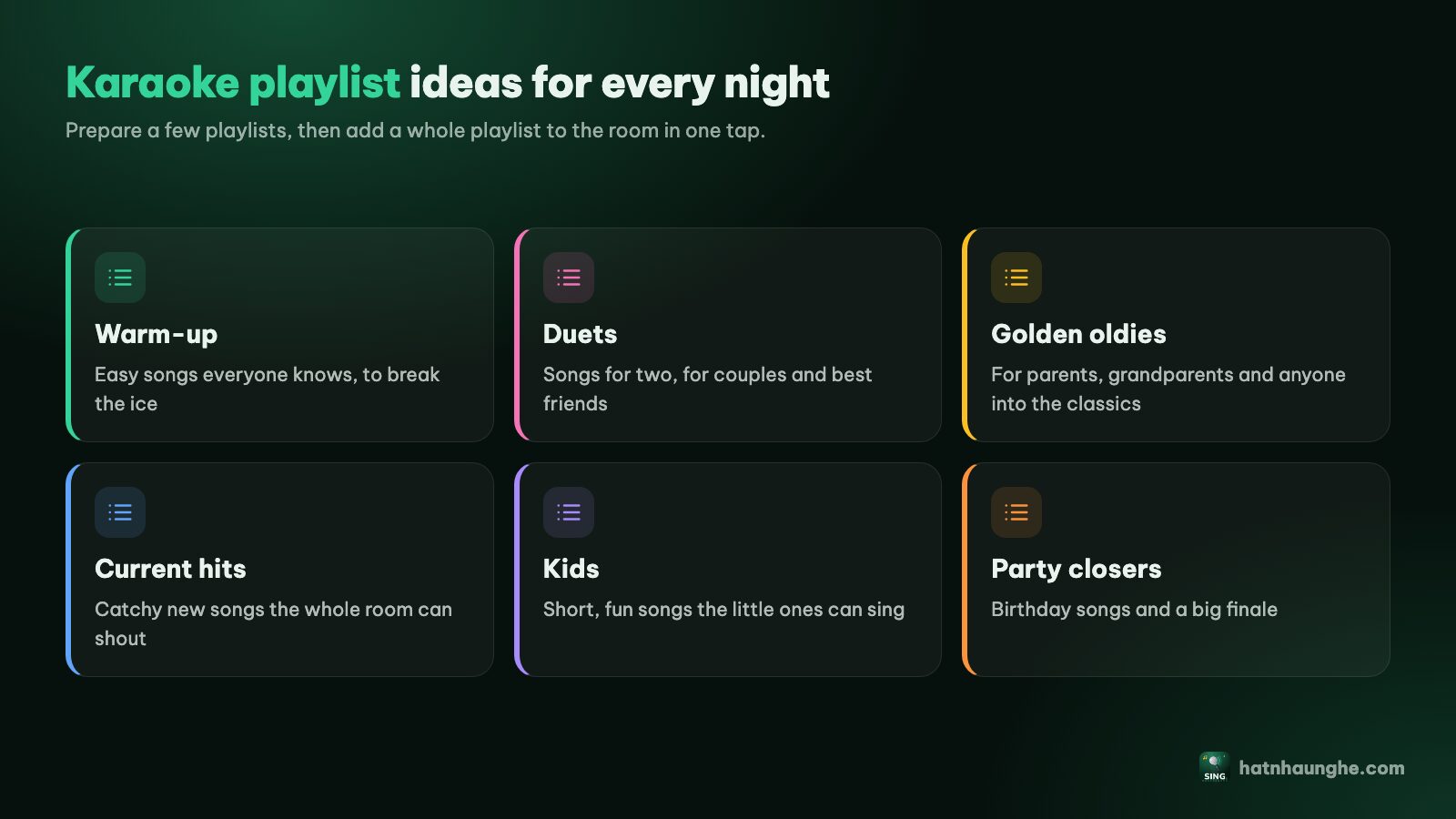
A few things to look for in kids' karaoke songs:
- Short songs, around two to three minutes. Little ones lose interest before a long song ends.
- Big, clear lyrics on a simple background. Busy effects make the words hard to read.
- Watch the whole video before saving it. Videos on YouTube are uploaded by other people, and sometimes the visuals or the end of a video include things you'd rather your child didn't see.
- Mix favorites with songs they're learning at school, so they can show off something new.
The free plan lets you keep 5 playlists of 20 songs each. For a kids' night, 20 songs is plenty.
Approve songs before they play
This is the single most important setting when kids pick songs on their own. A YouTube search can turn up unsuitable results, and kids tap fast. The simple fix: a parent hosts the room and turns on approval.
- 1A parent creates the room on their phone.
- 2Tap the gear icon to open Room settings.
- 3Turn on Approve songs before they're queued.
From then on, songs the kids add wait under Waiting for approval instead of going straight into the queue. You see the title and tap Approve or Reject. Songs you add yourself still go straight in, so your prepared playlist isn't held up.
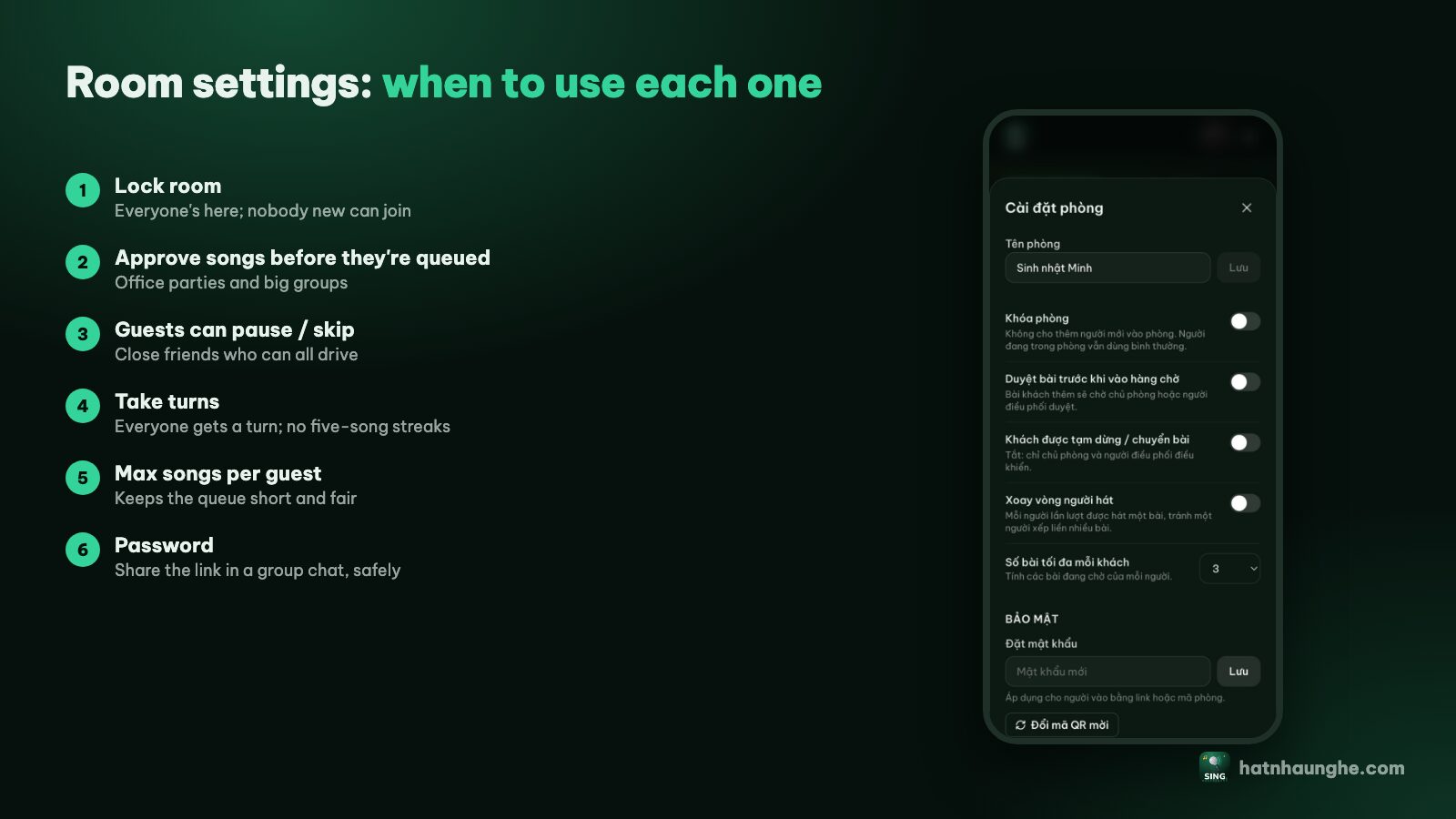
A few other switches on the same screen are worth a look:
- Guests can pause and skip: leave it off, so only you control playback and nobody skips a sibling's song.
- Lock room: once the family is in, lock it so nobody else can join.
- Max songs per guest: set it to 2 or 3 so no one queues ten songs in a row.
How kids join the room
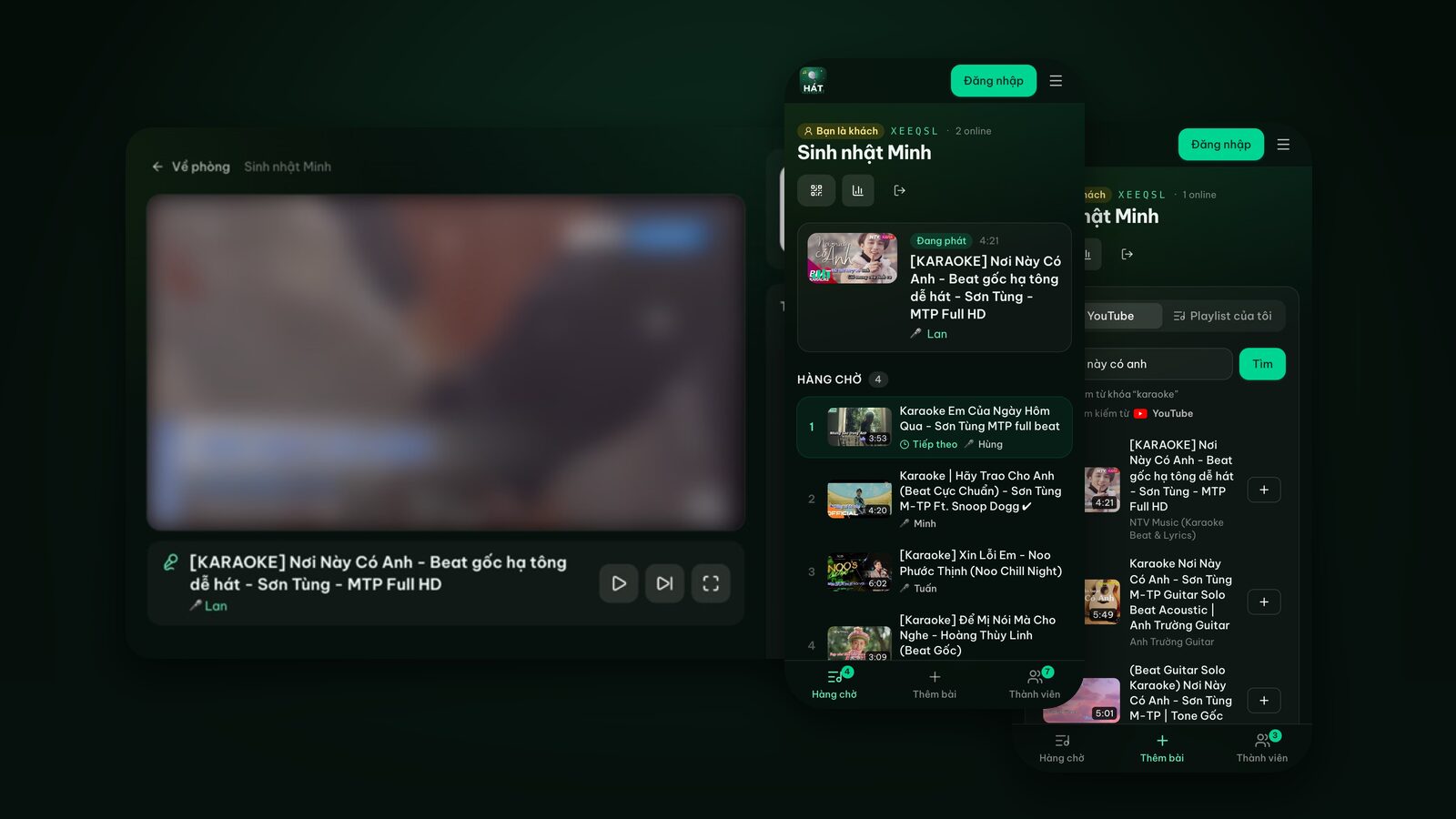
Kids don't need an account. They join a parent's room as guests:
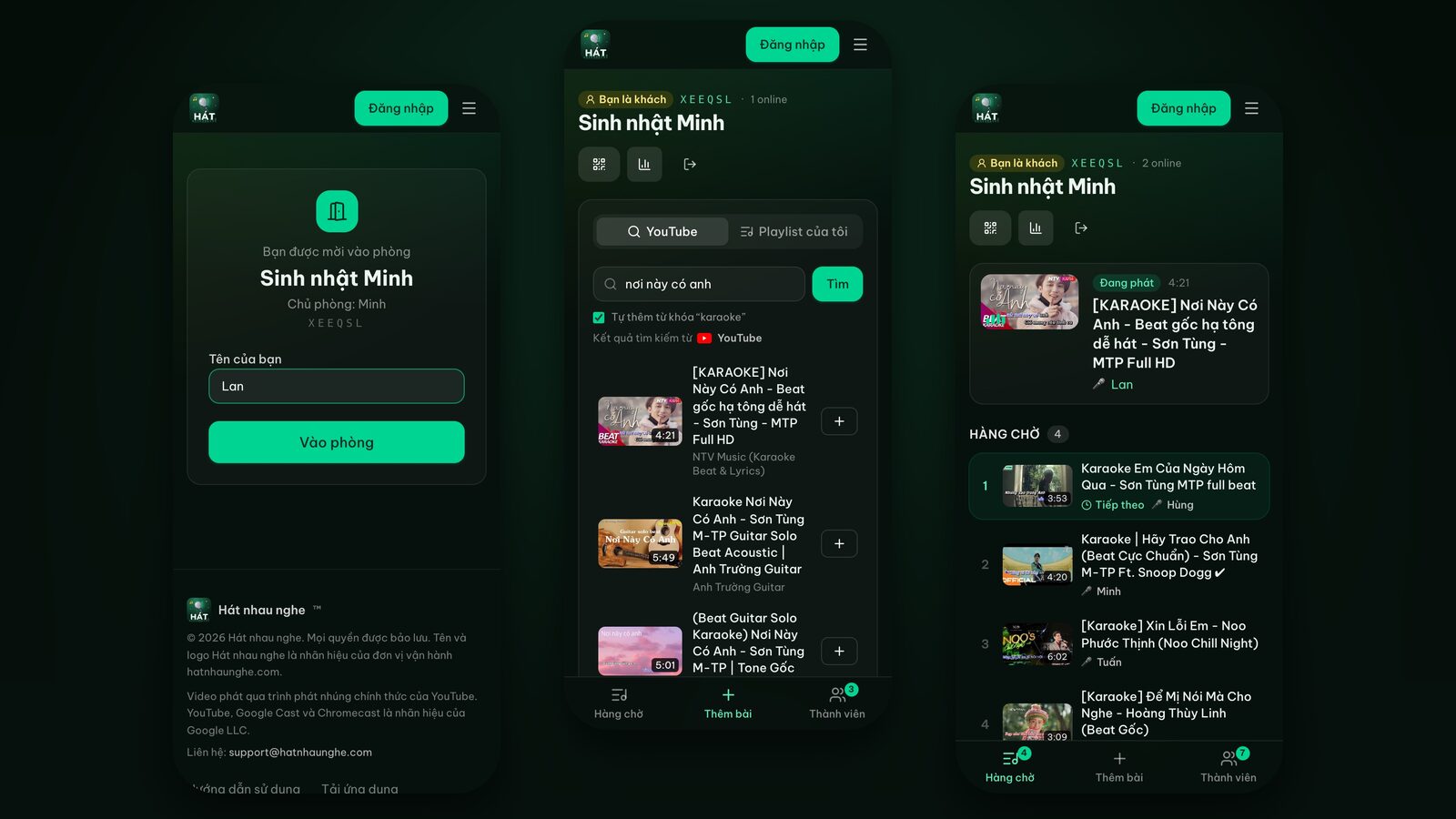
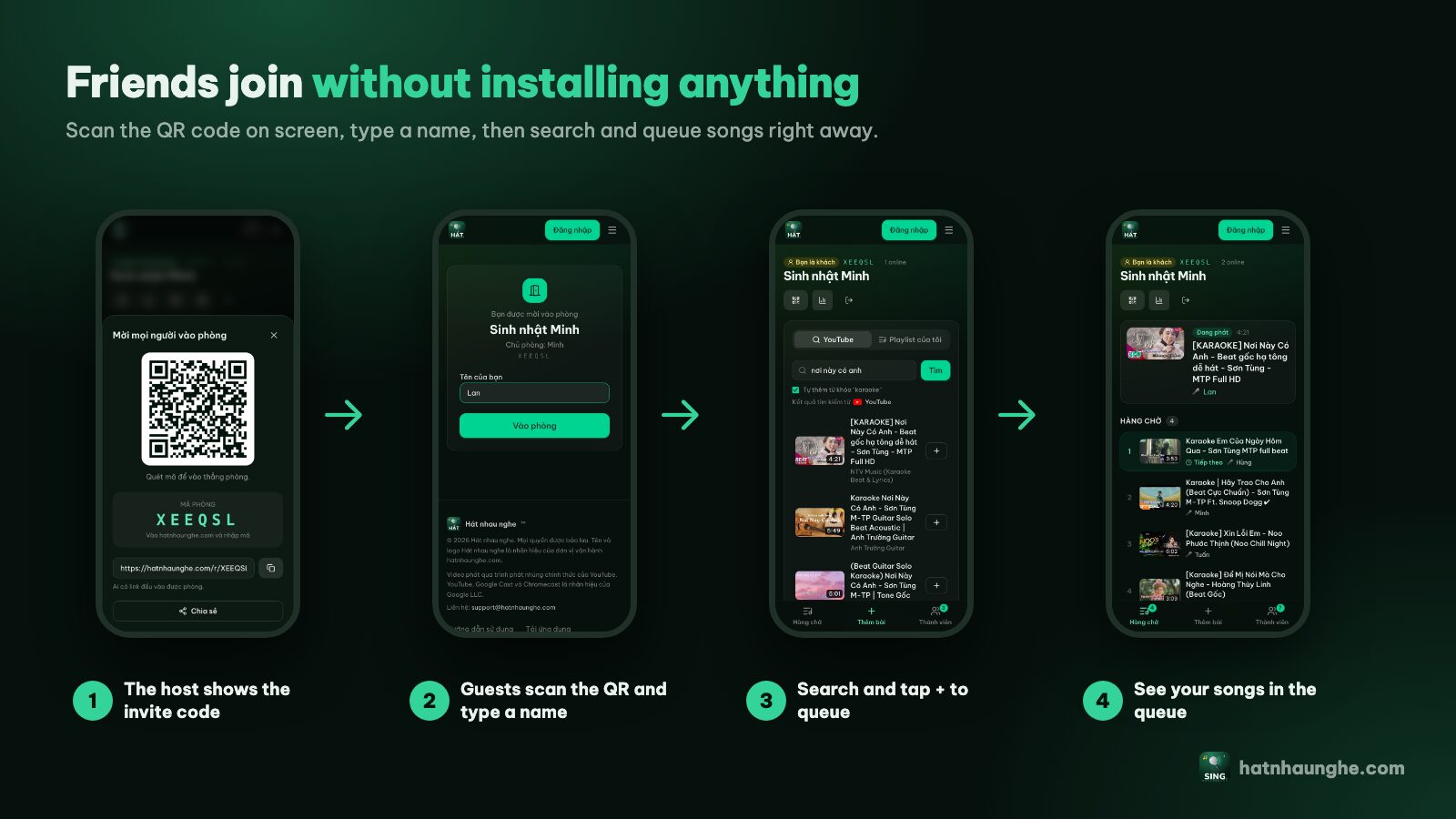
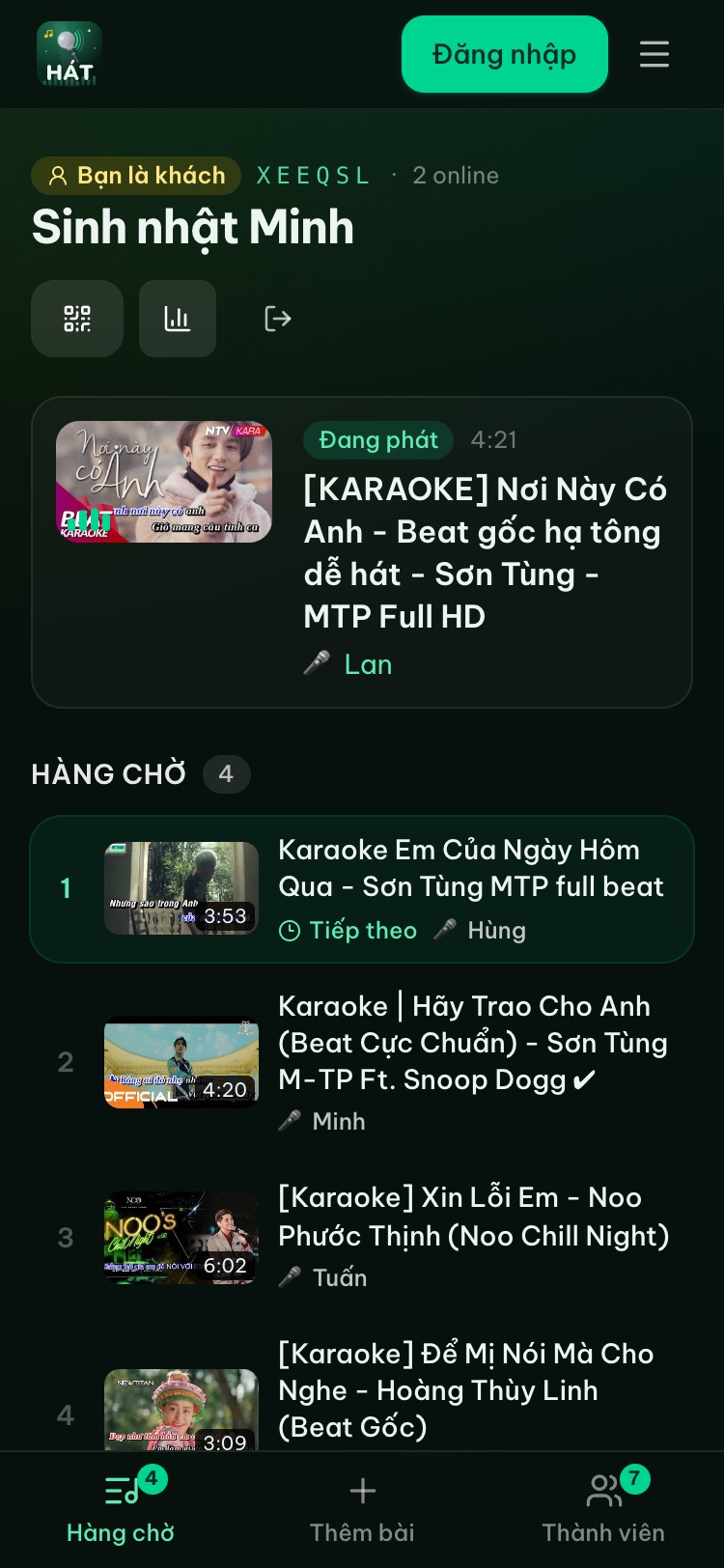
- 1The host taps Invite to show a QR code, or the TV player screen shows it in the corner.
- 2The child (or you, holding the device) scans it with a family phone or tablet.
- 3Type a name, like "Sam" or "Mia", and tap Join room.
- 4Open the Add songs tab, search, and tap + to send a song.
About accounts: the Hát nhau nghe privacy policy says the service isn't intended for children under 13 to create their own accounts, and young children should use it with a parent. In short, anyone can sing, but the Google account that opens the room belongs to a parent, and the kids join that room as guests.
Can't read yet? No problem. Sit together, let them point at the song they want and tap it for them. They'll still see their name on the TV when it's their turn, which is the part they love most.
The host keeps control of playback
As the host, every important control is on your phone: pause, skip, Restart a song from the beginning, and the player volume slider. Need a bathroom break mid-song? Pause. Forgot the words the first time? Restart.
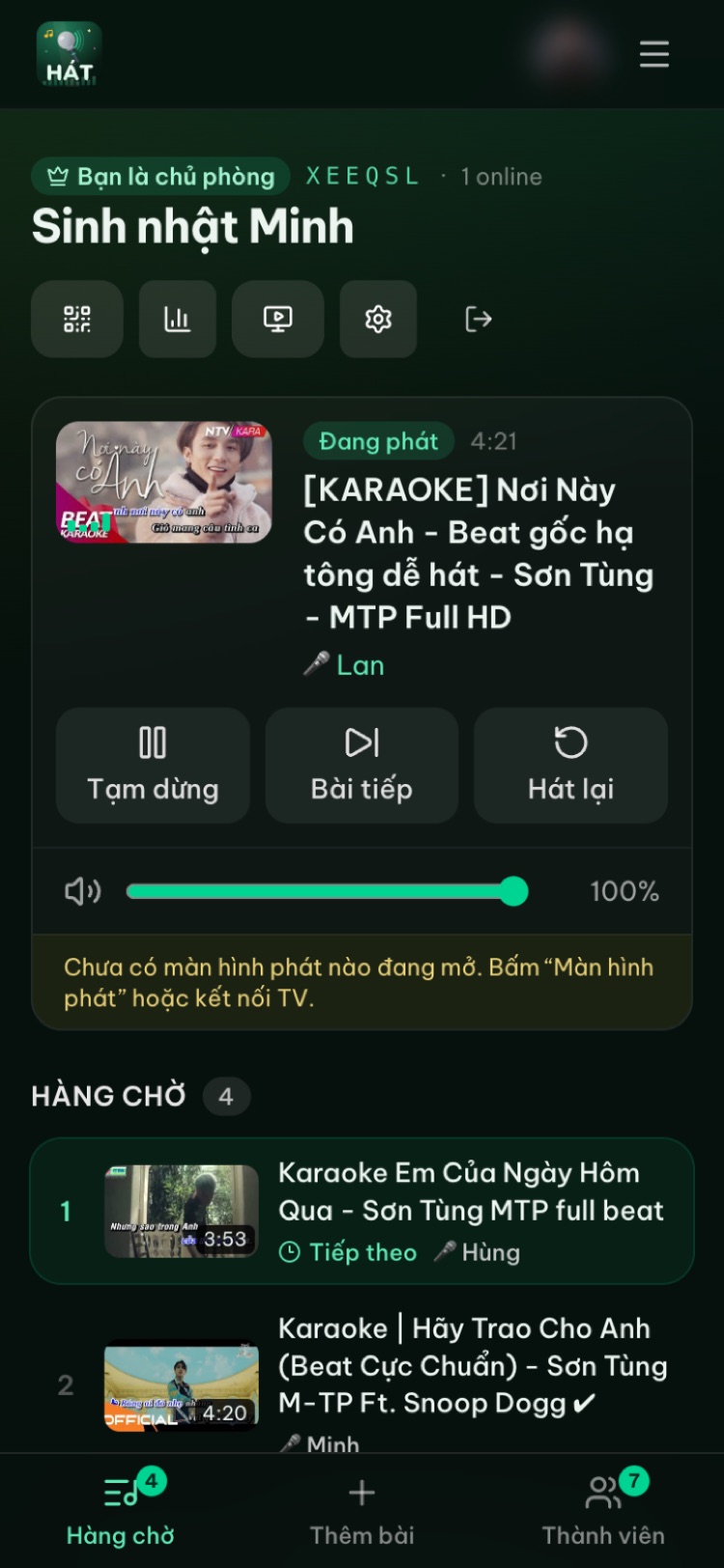
Tap any song in the queue to Move up, Move down or remove it. Handy when the youngest is getting sleepy and needs to go first.
There's more on room controls in running a karaoke room so everyone gets to sing.
Try it in your browser
Open a free karaoke room, let friends scan the QR code and start singing in seconds. Nothing to install.
Keep sessions short
For kids, a short happy session beats a long tired one. We usually keep it to 30 to 45 minutes and stop while they're still excited, so they ask for "karaoke again tonight?".
A structure that works for us:
- 1Warm-up (5 minutes): one song everyone sings together.
- 2Kids' turns (15 to 20 minutes): one or two songs each, taking turns.
- 3Grown-ups' turn (10 minutes): parents or grandparents sing and the kids cheer.
- 4Closer (5 minutes): one fun song, everyone dances, then off to brush teeth.
Close to bedtime, end on something calm rather than the loudest song of the night.
Volume and ears
Kids' ears are sensitive, and a living room is much smaller than a karaoke bar room. Some general rules I follow (common sense, not medical advice):
- Keep it lower than you think. If you have to shout to talk over the music, it's too loud.
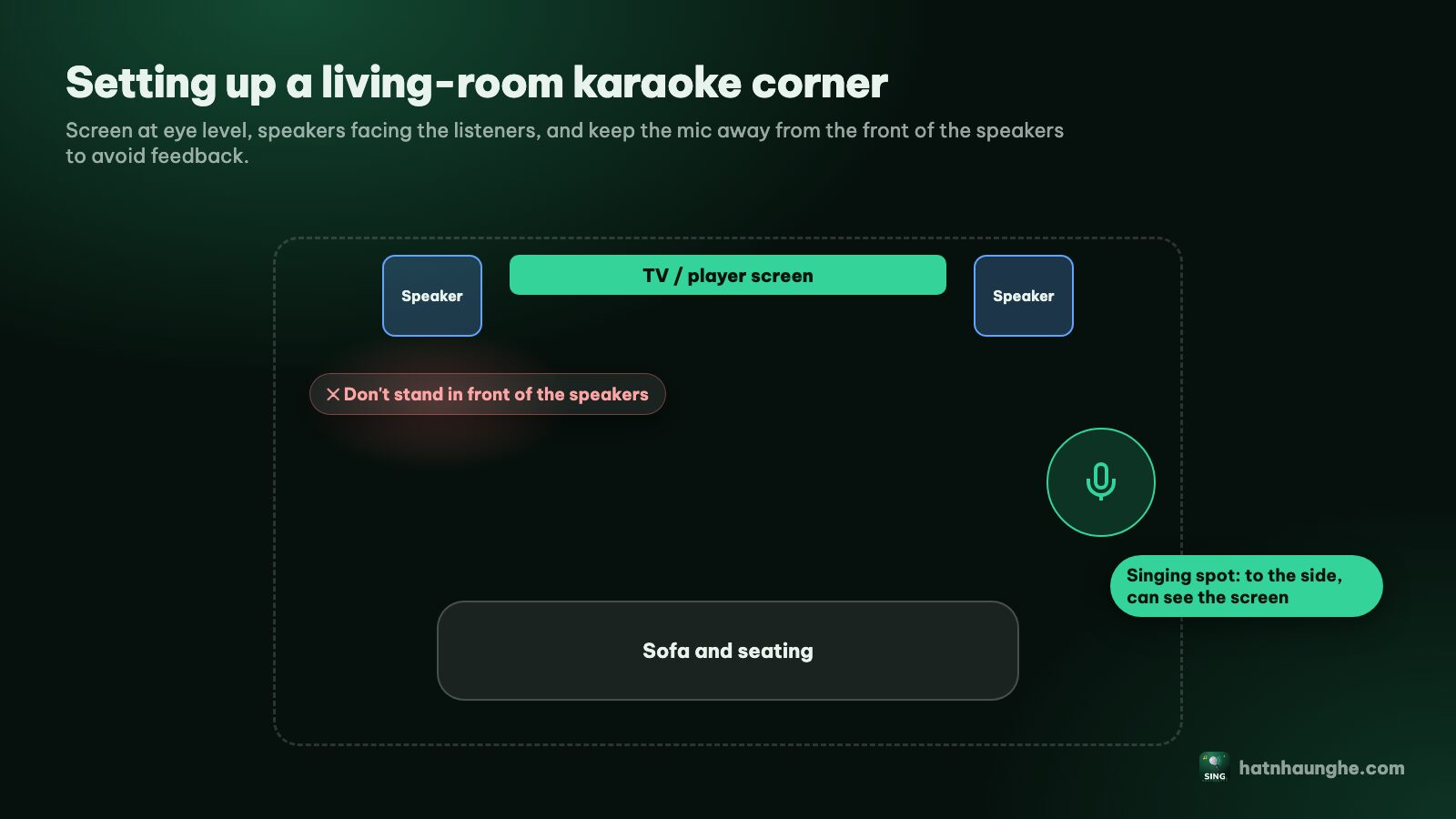
- Keep kids away from the speakers. Point speakers at the seating area and have kids sing off to one side of the TV.
- Turn mics down. Toy mics with built-in speakers can be very loud right next to the mouth. With a karaoke speaker, keep the mic level moderate to avoid feedback, the screech that startles little ones.
- Take breaks. A drink of water and a chat every few songs.
- Skip headphones for shared karaoke. If your child uses headphones at other times, keep the volume low.
If you're worried about your child's hearing, ask a doctor or another qualified professional.
The host can adjust the player volume from their phone, so there's no hunting for the TV remote. For speaker and mic placement, see choosing speakers and mics for home karaoke.
Siblings taking turns
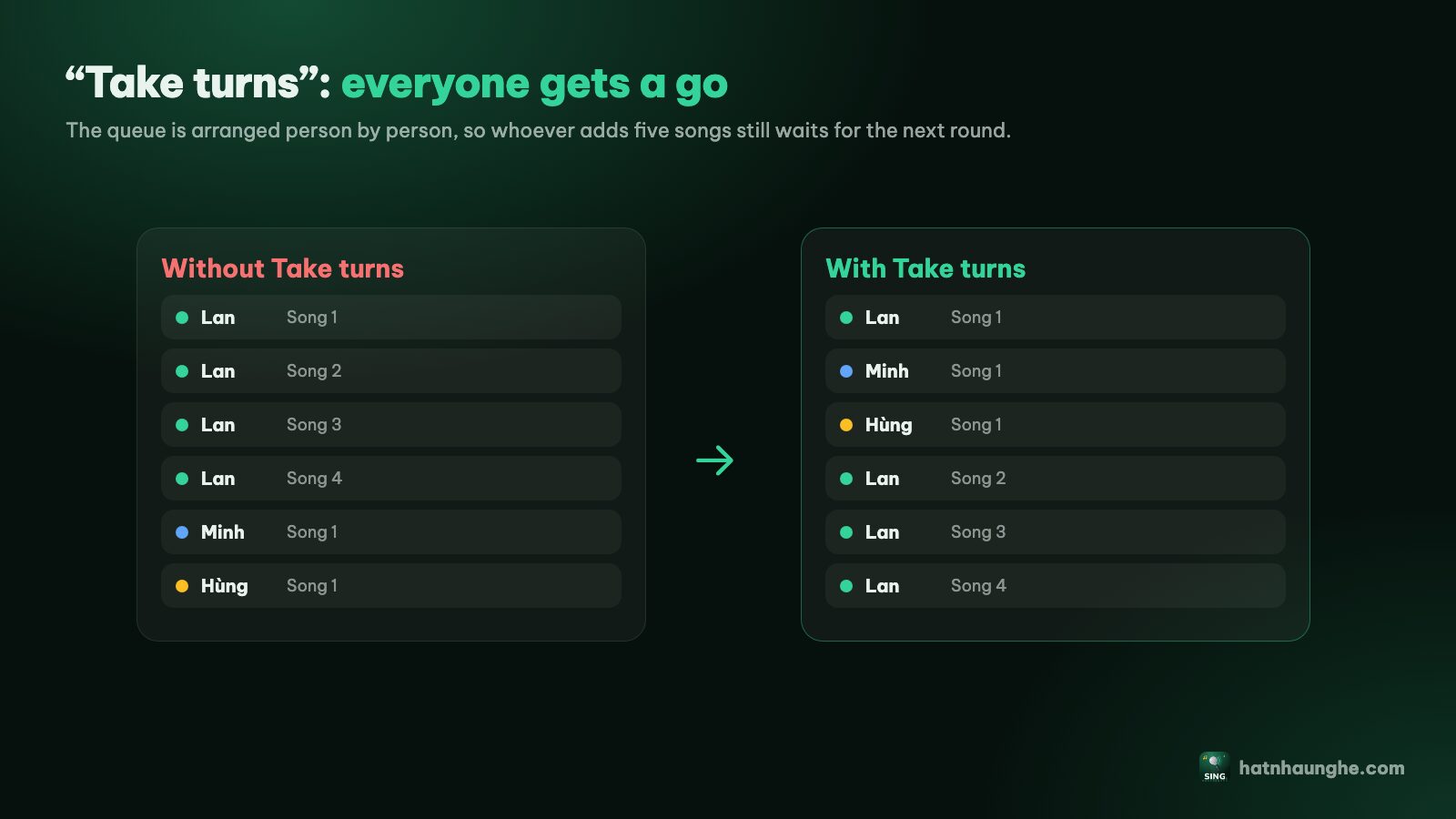
With two or more kids, "I go first!" is guaranteed. There's a setting for that.
In Room settings, turn on Take turns. The queue then orders itself by person: one song from child A, one from child B, then A's second song. Whoever queues five songs still waits for the next round.
A few more peacekeeping tips:
- Give each child their own name when joining. It shows on the TV, so there's no arguing over whose song it is.
- Add a duet so two siblings can sing together and nobody waits too long.
- Give the waiting kid a job: queue songs on the tablet, or be the "host" who introduces the next singer.
- Applaud everyone. No comparing who sang better.
Mix kids' songs with family favorites
The best family nights are when everyone has their songs. The kids sing theirs, parents sing the hits from their teenage years, grandparents sing the classics. Each generation hears the other's music, and my kids now know a couple of oldies just from hearing their grandpa.
I keep a few separate playlists, "Kids", "Mom and Dad", "Grandparents", and add them in on the night. With Take turns on, the queue spreads them out by itself. For easy grown-up picks, see easy karaoke songs and duets, and for holidays, karaoke with the family over the holidays.
Songs everyone can sing are gold: a children's song the parents also grew up with, or "Happy Birthday". Those usually get the biggest laughs.
What you need to get started
Nothing extra if you already have:
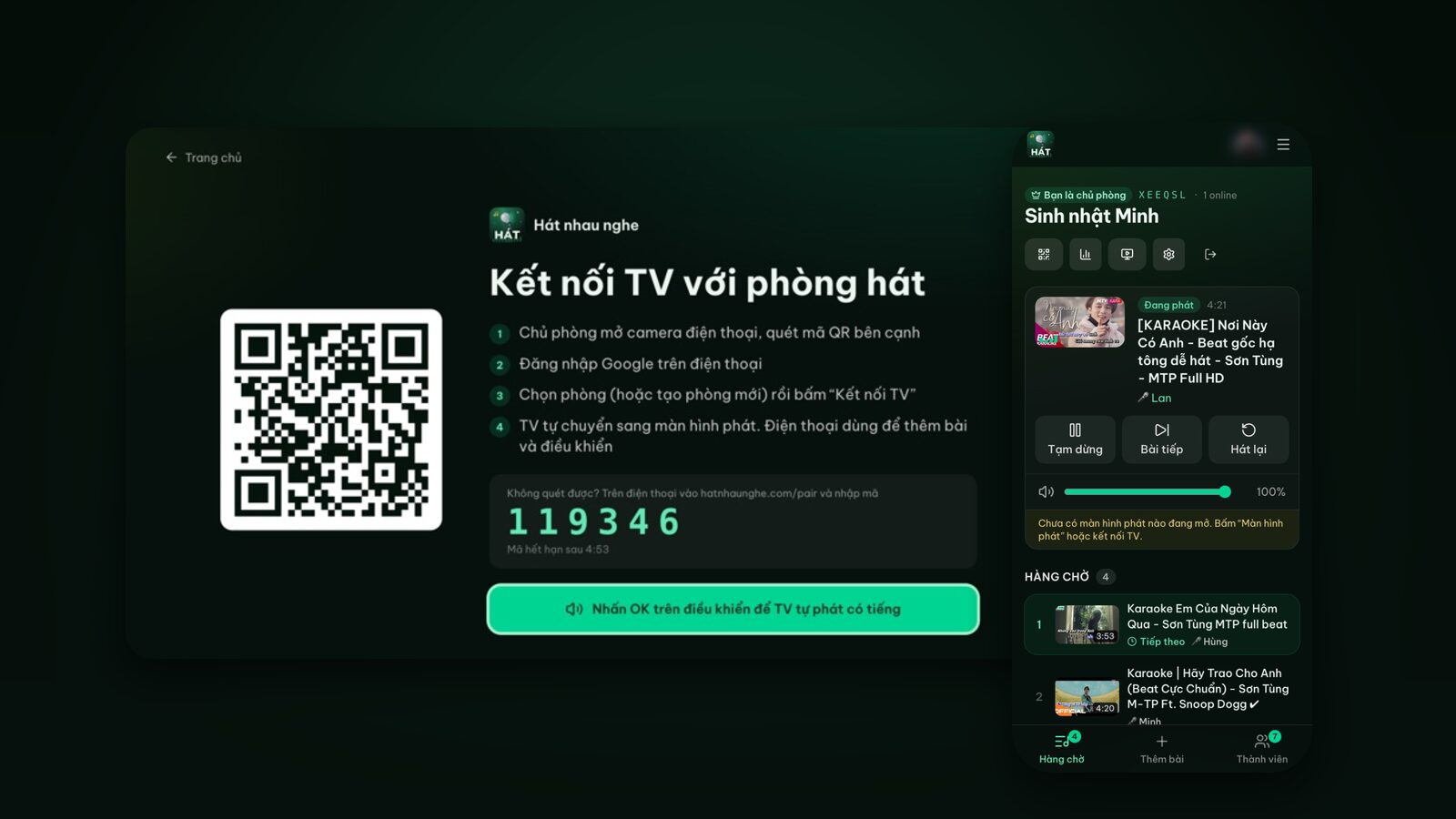
- A TV with a web browser, or a laptop connected to the TV over HDMI. On the TV, go to hatnhaunghe.com/tv and scan the code to connect. Step by step: karaoke on your TV with your phone.
- A parent's phone to host the room.
- A tablet or old phone for the kids to pick songs (optional).
- Wi-Fi.
- TV speakers are enough. A mic makes it more fun, but it isn't required.
There are apps for phones and Android TV on the apps page if you prefer, but everything here works in the browser.
FAQ
Is karaoke for kids free?
Yes. Hát nhau nghe is free; a parent just needs a Google account to open a room. The free plan allows up to 10 people per room, which is plenty for a family.
Does my child need an account?
No. Kids join a parent's room with the QR code or room code and just type a name. Per the site's policy, children under 13 shouldn't create their own accounts, and young children should use it with a parent.
How do I make sure nothing unsuitable plays?
Turn on Approve songs before they're queued in Room settings, so the kids' picks wait for you to approve them. Prepare a kids' playlist you've checked in advance, and keep an adult in the room while they sing.
Will there be ads while my child is singing?
Videos play through YouTube's official player, so any ads are YouTube's. Hát nhau nghe doesn't download, store or edit videos.
Does the site score my child's singing?
No. The site doesn't capture mic audio. Premium has a fun score after each song plus star votes, but it isn't based on the voice. More in karaoke scoring and voting.
Have a wonderful family karaoke night. The full guide has every step with screenshots.
Try it in your browser
Open a free karaoke room, let friends scan the QR code and start singing in seconds. Nothing to install.